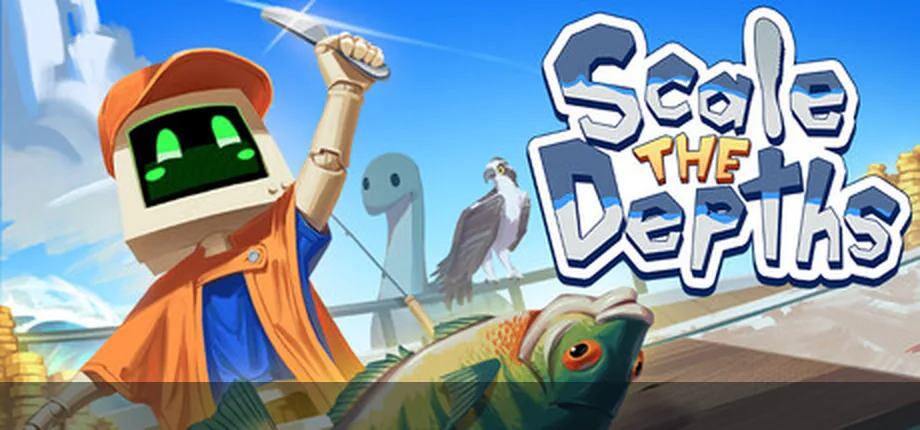
Can you play Scale the Depths on mobile?
You can try the official browser build on a phone or tablet, but mobile compatibility should be treated as a test rather than a guaranteed native release. The first-party pages checked for this guide identify the game with browser, Windows, macOS, and Steam paths; they do not provide a verified Android or iOS installer.
That means the safest mobile answer is browser-first: open the known developer-hosted page, let the WebGL content load, rotate to landscape, and see whether the game accepts the available input. If the canvas is too small, touch input does not respond, or the device struggles with WebGL, use the official PC path instead of installing an APK from a scraper.
What the official platform information does and does not say
Mobile search results can mix the real game with unrelated apps, cloned pages, and download listings that reuse the title. A matching name is not proof that an Android build belongs to the developer. For this guide, the official developer page, Steam store page, and itch.io page are the source boundary: they are useful for identifying the game and its supported distribution paths, but none of them gives us a stable official Android or iOS file to link.
Do not turn the phrase Scale the Depths mobile into a promise of a native phone version. The page can help you test browser play, but it cannot guarantee performance on every browser, screen size, touch layer, school network, or privacy configuration. If a page asks you to sideload an APK, install a launcher, or disable device protections, leave it and return to a first-party page.
The distinction from the download guide is intentional. The download page compares official PC, Steam, browser, and other store decisions. This page focuses on the phone question: whether a mobile browser test is practical, what failure looks like, and how to choose a desktop fallback without mistaking an unofficial Android listing for an official release.
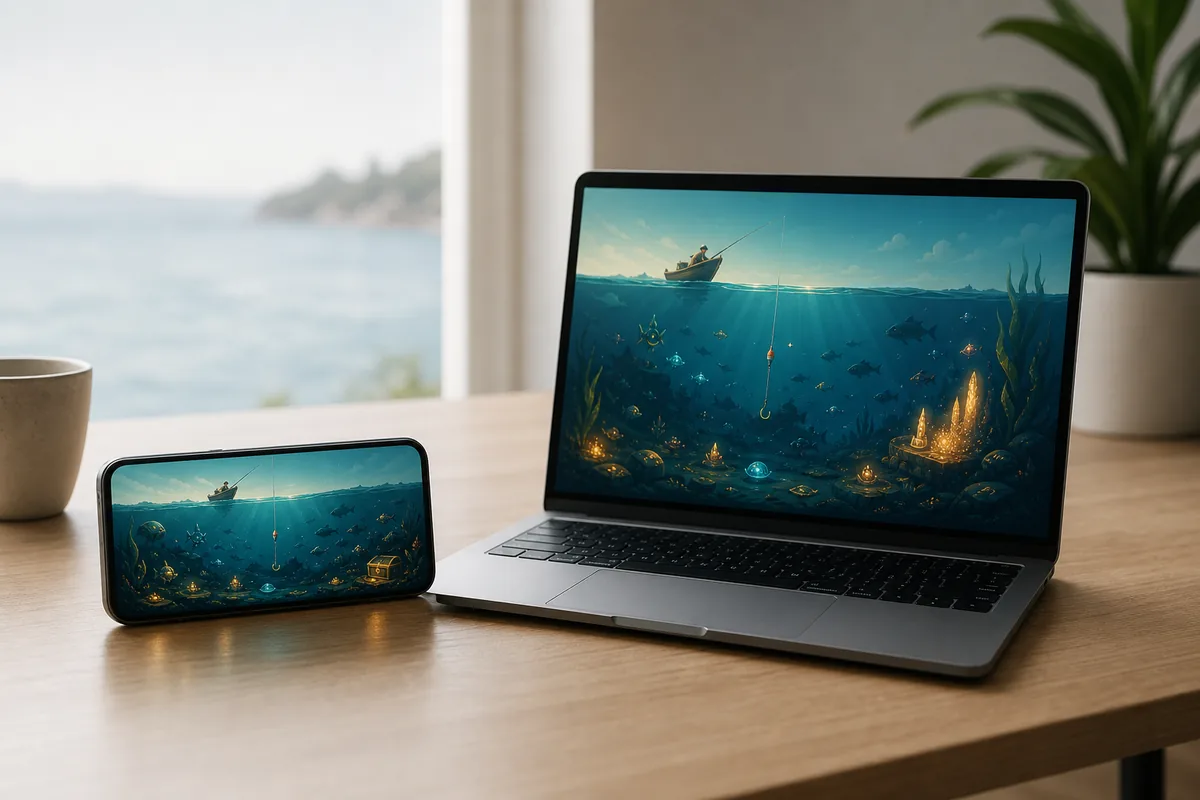
Phone and tablet compatibility at a glance
Use the table as a decision guide, not as a device certification. A browser build can work on one phone and fail on another because of memory, WebGL support, browser settings, storage, orientation, or input focus.
| Platform or route | What is verified | Practical expectation |
|---|---|---|
| Mobile browser | Worth testing | Use the known browser page, allow the canvas to load, try landscape mode, and stop if the page pushes an unknown installer. |
| Android APK | No verified official file | Do not treat APK scraper pages, mirrored packages, or app names with the same title as a first-party release. |
| iPhone or iPad | No native release verified | A browser test is the only cautious route described here; do not infer App Store support from a search result. |
| Windows or macOS | Official desktop path | Use the developer or Steam route when mobile rendering, input, or performance is not good enough. |
How to test Scale the Depths browser play on a phone
A short, reversible test is safer than downloading an unknown mobile package. Do not enter payment details or install a file during this check.
Start from a first-party page
Open the developer-hosted browser route or the official links on this site. Check the domain before the canvas loads, and avoid pages that add a second download button for an APK.
Use landscape orientation
A wider viewport gives the game canvas more room and reduces accidental taps near browser controls. If the page asks for fullscreen, only use the browser's normal permission prompt.
Tap inside the game canvas
Embedded games often need focus before keyboard or pointer input reaches the canvas. Tap once inside the play area, wait for loading to finish, and do not assume a frozen frame means you need a new installer.
Test one short loop
Try a small fishing, scaling, and selling cycle. If the frame rate, touch response, heat, or battery drain is poor, stop the test and use a desktop browser or the official PC version instead.
Common mobile limitations
The following are practical browser risks, not claims that every phone has the same problem.
- Touch controls may not map cleanly to keyboard prompts or pointer interactions used by the browser build.
- A small viewport can hide buttons, reduce the playable canvas, or make a precision action uncomfortable.
- WebGL loading can be affected by browser privacy settings, content blockers, low memory, or a restrictive network.
- Browser progress is convenient for testing, but do not assume it has the same save behavior as an installed PC copy.
- A page that promises a guaranteed Android version, cracked installer, or one-click APK is not made trustworthy by using the correct game name.
- School, workplace, or public networks may block game domains or embedded storage; this guide does not recommend bypassing those policies.
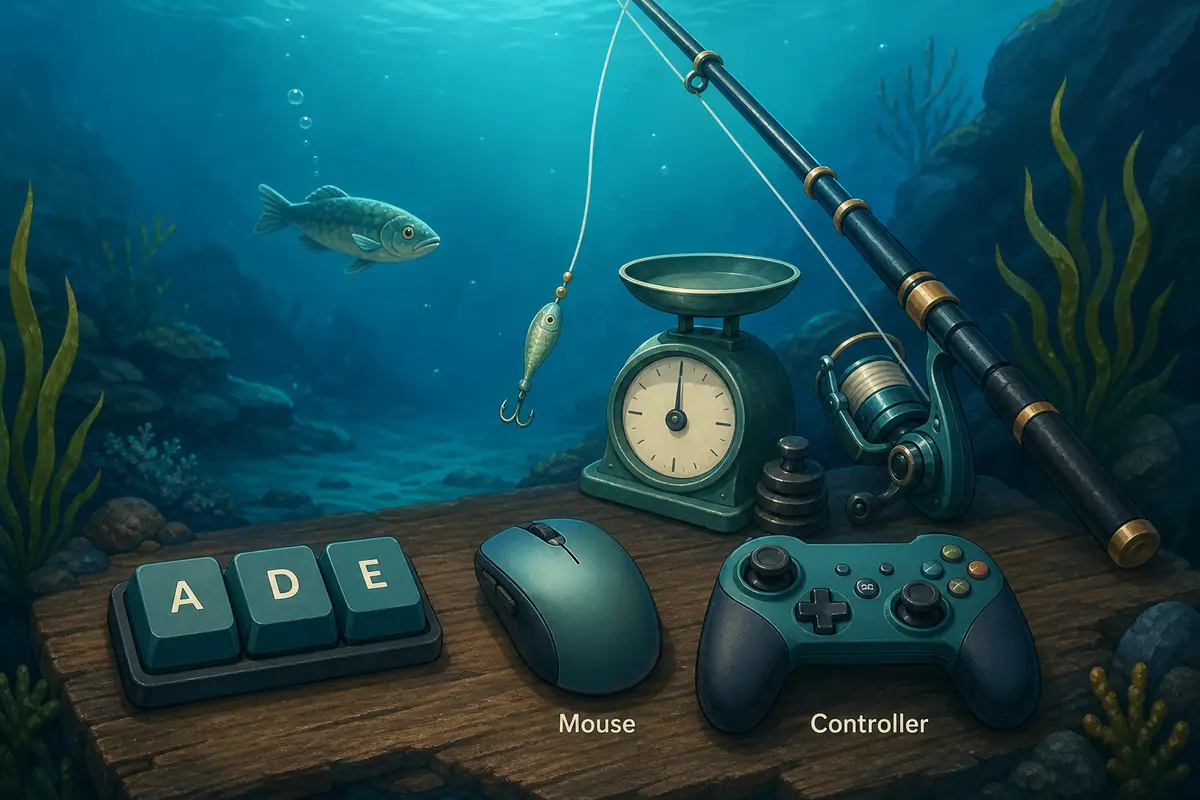
When desktop controls are the better choice
If the mobile browser loads but the game does not react to taps, do not keep refreshing random mirrors. Click or tap inside the canvas once, check fullscreen and browser focus, then compare the result with the controls guide. Some prompts are designed around keyboard, mouse, or controller input, and a phone touchscreen may not expose every interaction comfortably.
A desktop browser is a useful middle step because it keeps the browser experience while providing a larger canvas and more predictable pointer or keyboard focus. If you want longer sessions, stable performance, or a store-managed installation, move to the official Windows or macOS route described by the developer and Steam rather than a third-party Android package.
Mobile intent is therefore a compatibility question, not a reason to promise a download. Start with a small browser test, protect the device from unknown files, and use the existing controls, download, and unblocked guides for the next decision.
Official sources checked for this guide
The links below are first-party references for platform identity and distribution. They do not prove that every mobile browser or device will run the game.
Glass Gecko Games
The developer game page identifies the official Scale the Depths project and its listed platform context.
Open developer pageSteam store page
Use the official store route for PC ownership and desktop installation information; do not reinterpret search ads as a mobile release.
Open SteamDeveloper itch.io page
The developer-hosted itch.io page is the browser-first source to test before considering any desktop purchase or fallback.
Open itch.ioScale the Depths mobile FAQ
Is there an official Scale the Depths Android APK?
No verified Android APK is linked by the first-party developer, Steam, or itch.io pages checked for this guide. Treat APK listings as unverified unless the developer publishes a clear official release page.
Can I play Scale the Depths on an iPhone or iPad?
You can test the browser route if the device loads the WebGL page, but this guide does not claim a native iOS release or guaranteed touch compatibility.
Is Scale the Depths mobile the same as the PC game?
A browser test and a desktop store version should not be treated as identical experiences. The official PC route is the safer choice for longer sessions, while mobile browser play is a reversible compatibility test.
Why does the mobile page freeze or show a blank canvas?
Possible causes include WebGL support, low memory, browser privacy settings, content blockers, restrictive networks, or an iframe that has not received focus. Try a normal browser, landscape mode, one tap inside the canvas, and then a desktop fallback.
Should I install a Scale the Depths mobile game from an app store clone?
No. A similar name, icon, or screenshot does not establish that the listing belongs to the developer. Use the official sources above and avoid sideloading when ownership and package provenance are unclear.
Where should I go after testing mobile play?
Use the controls guide for keyboard, mouse, controller, and iframe focus issues; use the download guide for PC and Steam choices; use the unblocked guide for network restrictions; and use the homepage for the browser play entry point.